How to Manage Locations and Venues
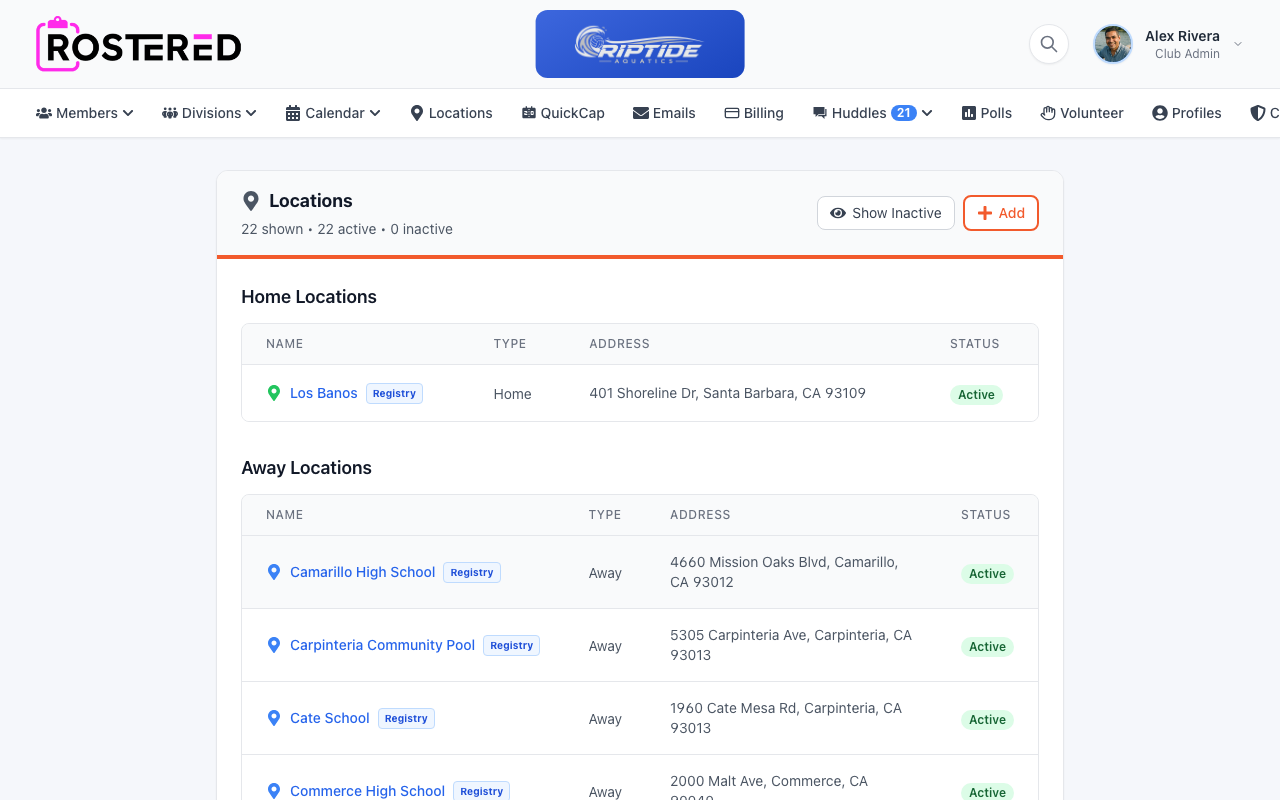
Locations in Rostered represent the venues where your team practices and plays. This guide covers adding, editing, and organizing your locations.
Viewing Your Locations
- Navigate to your club dashboard.
- Click Locations in the top navigation bar.
- Locations are organized into three categories:
- Home Locations - Your primary venues (green icon)
- Away Locations - Opponent venues (blue icon)
- Other Locations - Neutral sites or other venues (gray icon)
The page shows:
- Location name
- Type (Home, Away, Neutral)
- Address
- Status (Active/Inactive)
A blue Registry badge next to a location's name means it's linked to Rostered's shared venue directory — see Linking to the Venue Registry below.
Adding New Locations
- From the Locations page, click Add Location.
- Fill in the location details:
- Name - Descriptive name (e.g., "Main Field", "Community Center Gym")
- Location Type - Home, Away, or Neutral
- Address - Street address for directions
- Click Save to create the location.
Location Types Explained
- Home - Venues your club owns or primarily uses. These appear first when scheduling events.
- Away - Opponent facilities or venues you travel to for games.
- Neutral - Tournament sites or shared facilities that aren't specifically home or away.
Linking to the Venue Registry
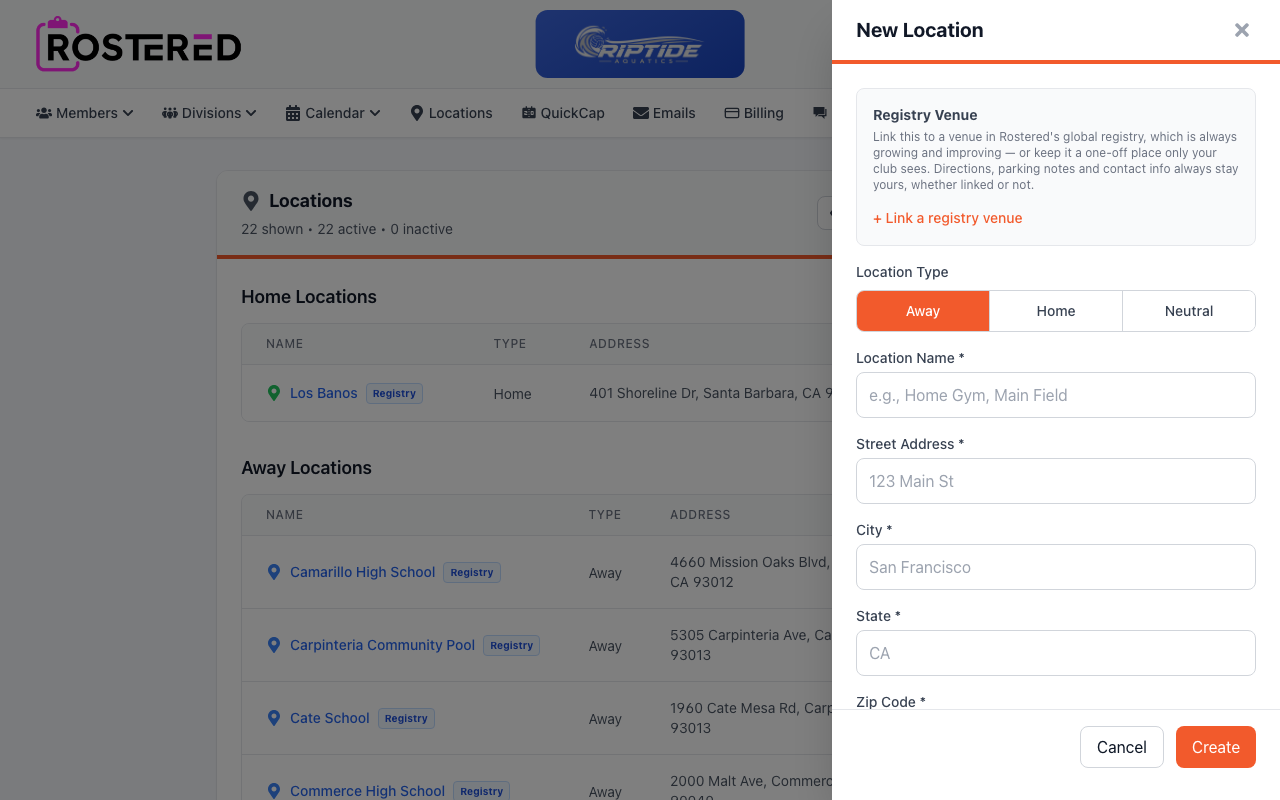
Rostered maintains a global registry of known venues — schools, pools, gyms, and fields with real addresses already on file — that's constantly growing and improving. Instead of typing an address by hand, you can search this registry and link straight to an entry that already exists.
Searching for a Venue
- When adding a new location, click + Link a registry venue.
- Start typing the venue's name in the search box.
- Matching venues appear as you type, each with its address.
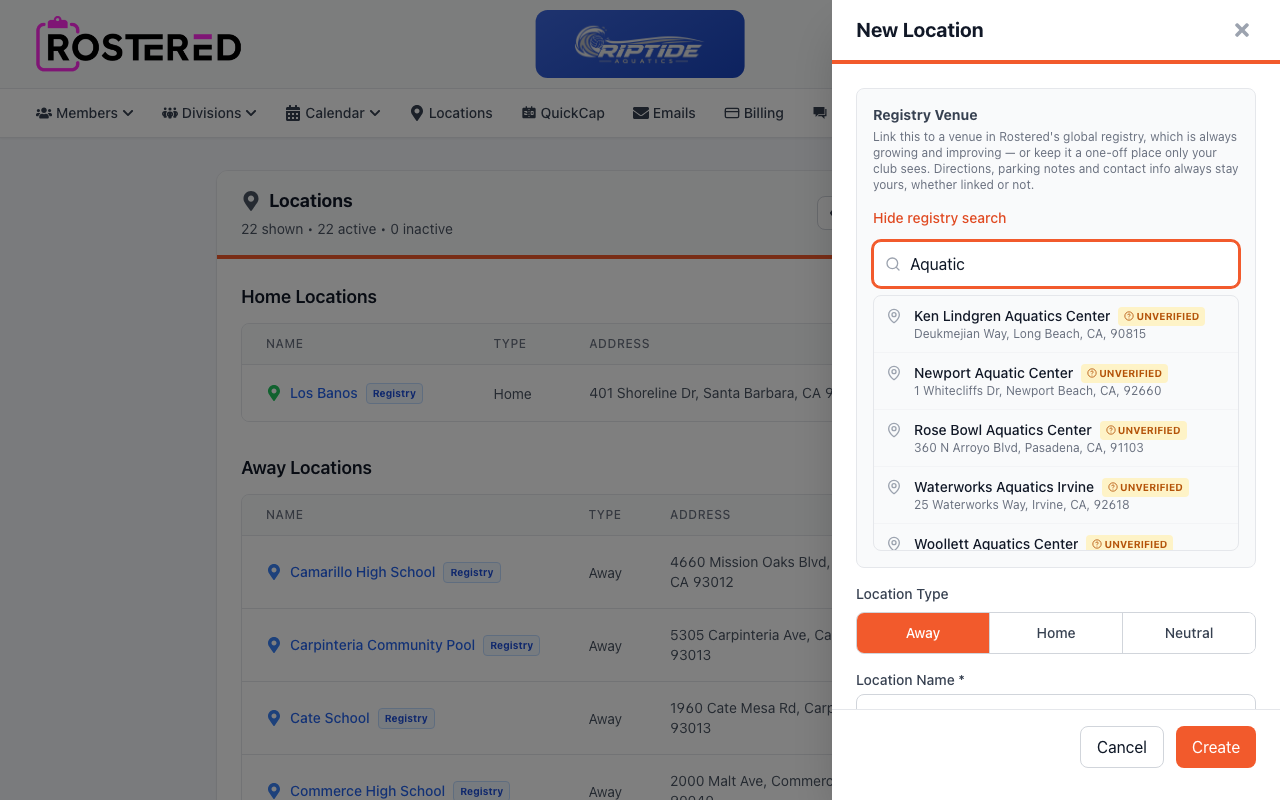
- Click a result to select it. The venue's name fills in as your location's name, and its address is used automatically — you don't need to type anything else.
- Give it a Location Type (Home, Away, or Neutral) and click Create.
You can do the same thing from an existing location's Edit screen if you want to link it to the registry after the fact.
What Gets Filled In For You
- Most registry entries have a confirmed address. Linking to one of these keeps your location's address in sync automatically — if the registry entry is ever corrected, your location updates too.
- Some registry entries haven't been independently confirmed yet. Linking to one of these copies its current address in as a starting point, which you're free to edit — after that, your edits are yours and won't change if the registry entry does.
- Either way, everything else about the location — directions, parking instructions, contact info, and notes — stays entirely yours. Linking a venue never shares or exposes anything you write there.
Unlinking or Overriding the Address
Open the location's Edit screen to manage an existing link:
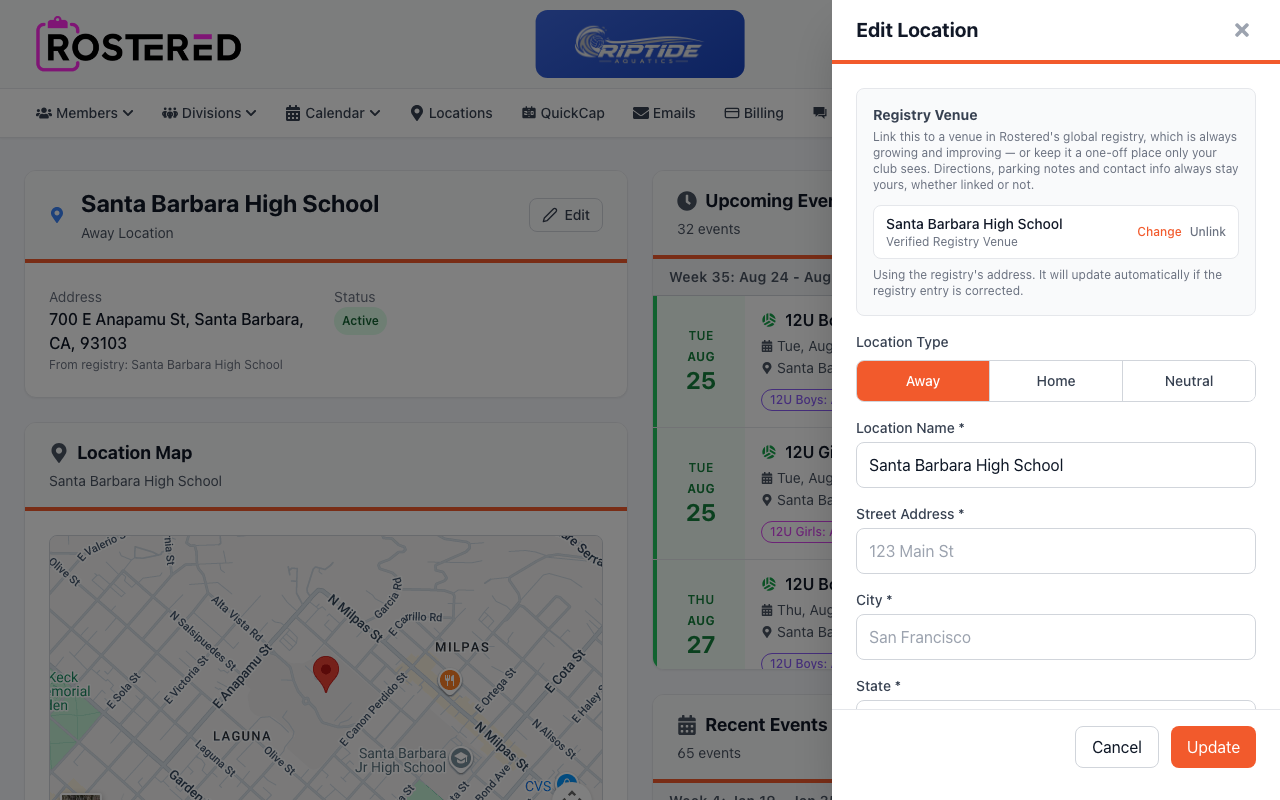
- Change — search for and link a different venue.
- Unlink — remove the connection entirely; the location keeps whatever address it currently shows.
- Type a new address into the Street Address fields at any time to override what the registry provides — your typed address always wins.
- If you've overridden the address and want to go back to using the registry's, click Reset to registry address (only available for confirmed venues).
Why Bother Linking?
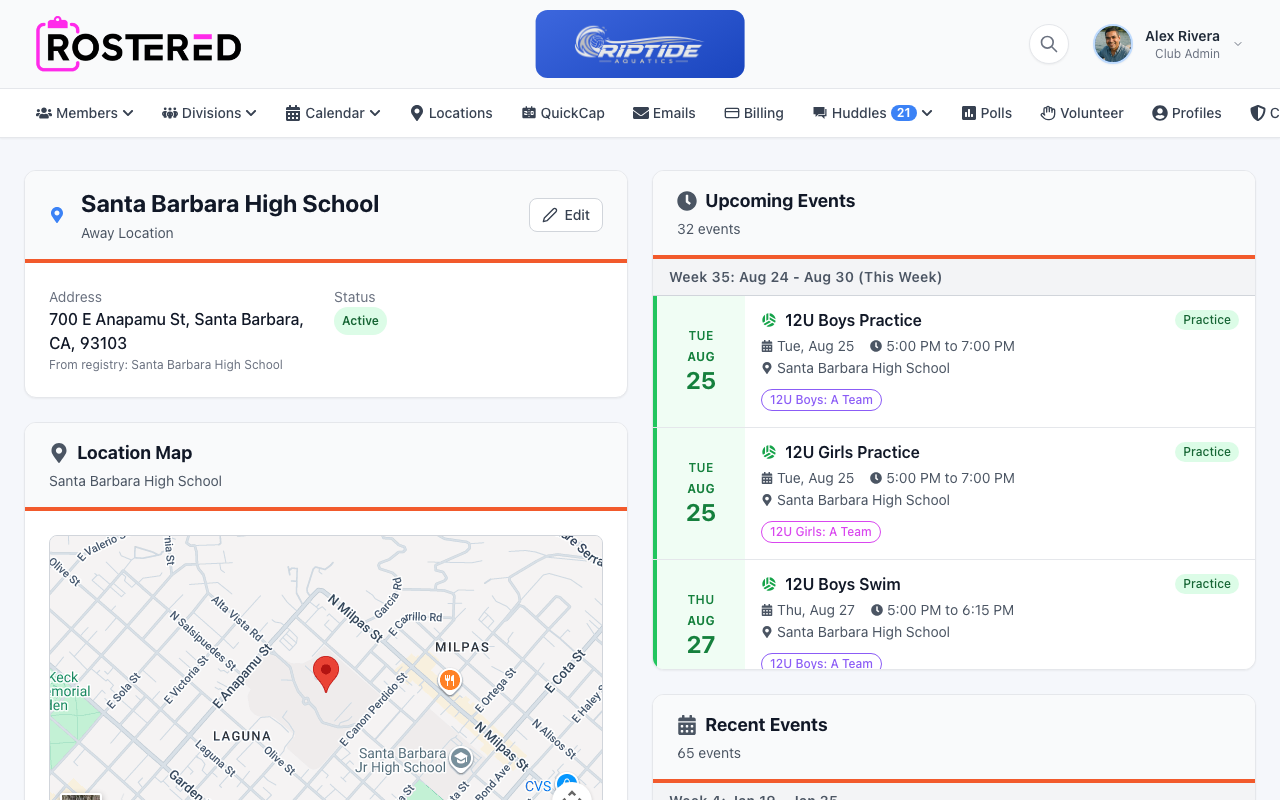
A location with a live map and weather forecast on its detail page needs a real, confirmed address — linking to the registry is usually the fastest way to get one, since it may already be on file.
Importing Locations
For bulk location setup:
- Click Import Locations on the Locations page.
- Follow the import wizard to add multiple locations at once.
- This is useful when setting up a new club or adding many venues.
Editing Location Details
- Click on a location name to open its detail page.
- Edit the following information:
- Name
- Location type
- Address fields
- Notes or special instructions
- Its link to the venue registry — see Linking to the Venue Registry
- Save your changes.
Address Information
Complete address information helps families find venues:
- Street address
- City, State, ZIP
- The address appears with a map link on event details
Deactivating Unused Locations
Locations you no longer use can be deactivated instead of deleted:
- Open the location's detail page.
- Find the Status setting.
- Change from Active to Inactive.
- Save your changes.
Inactive locations:
- Don't appear in location dropdowns when creating events
- Are hidden by default in the locations list
- Can be reactivated if needed later
Showing Inactive Locations
- On the Locations page, click Show Inactive.
- All locations including inactive ones are displayed.
- Click Hide Inactive to return to the default view.
Using Locations in Events
When creating or editing schedule items:
- Click the Location dropdown.
- Select from your saved locations.
- The location's address and map link are added to the event.
Creating Locations While Scheduling
If you need a new location while creating an event:
- In the location dropdown, click Create New Location.
- Enter the basic location information, or link a registry venue to fill in the address automatically.
- The new location is saved and selected for the event.
- You can add more details later from the Locations page.
Location Best Practices
Before the Season
- Add all your home facilities first.
- Include common away venues you visit regularly.
- Add complete addresses for accurate directions.
Naming Conventions
Use clear, consistent names:
- Include the facility type: "Lincoln Park Field 1", "YMCA Gym A"
- Add distinguishing details: "North Campus" vs "South Campus"
- Keep names concise but descriptive
Keep It Updated
- Deactivate locations you no longer use
- Update addresses if facilities move
- Add new venues as your league schedule expands