Welcome to Rostered
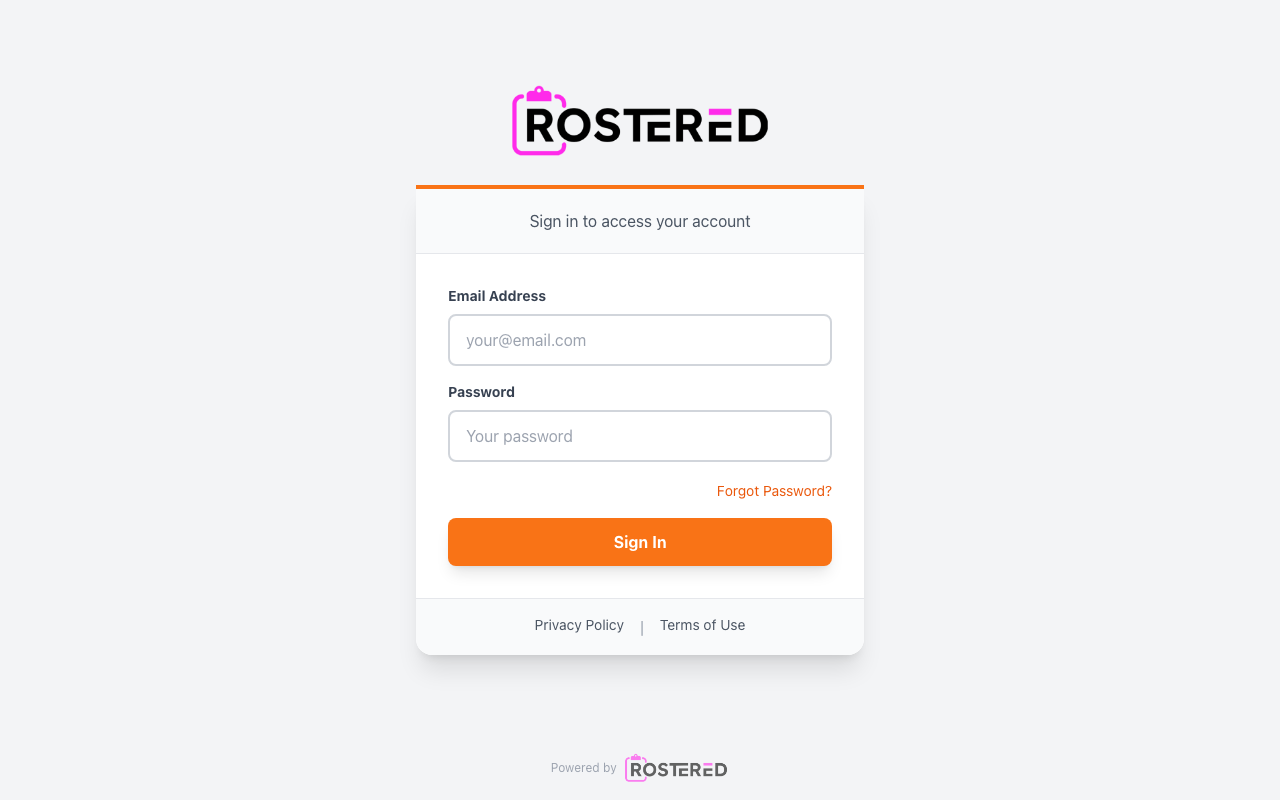
Rostered is the easiest way to manage your sports club's rosters, schedules, and communications. Whether you're a parent keeping track of your child's activities, a coach organizing your teams, or an administrator managing your entire club, Rostered streamlines everything in one place.
What is Rostered?
Rostered helps sports clubs:
- Manage rosters - Keep track of who's playing and who's available
- Schedule games and practices - Create and share schedules with your team
- Communicate - Send announcements and updates to players and guardians
- Track attendance - Know who's coming to each event
- Share updates - Post photos, send messages, and create polls
- Coordinate logistics - Manage locations, RSVPs, and team information
Getting Started: From Invitation to First Login
Step 1: Accept Your Invitation
You'll receive an invitation to join your club via email or text message. The invitation includes a link to get started:
- Click the invitation link in your email or text message
- Set up your account:
- If you're new to Rostered, you'll be prompted to set your name and create a password
- If you already have an account, log in and the invitation will be accepted automatically
- Complete verification: Check your email for a verification link and click it
- Return to the app: You'll be automatically connected to your club
If you lose the invitation link, you can also use the "Forgot Password" option on the login screen. Setting your password this way will also accept any pending invitations for your account.
Step 2: Download the Mobile App (Recommended)
While Rostered works in your web browser, the mobile app provides the best experience:
- Download from the App Store:
- iOS: Search "Rostered" in the App Store
- Log in with your new account using the email and password you created
- Enable push notifications when prompted (highly recommended)
First-Time Setup by Role
For Guardians (Parents & Caregivers)
Once you're logged in, here's what to do first:
1. Review Your Athletes
- Go to the Family tab (your home screen)
- Verify that your children are correctly listed
- If an athlete is missing, contact your club administrator
- Check that athlete information (name, age, etc.) is accurate
2. Set Up Your Profile
- Tap your profile picture or settings icon
- Add/update your contact information
- Upload a profile photo to help coaches identify you
- Review your emergency contact details
3. Explore Your Family's Schedule
- Each athlete card shows their next upcoming event
- Tap an athlete card to see their complete schedule
- Look for upcoming practices, games, and tournaments
- Check event locations and times
4. Configure Notification Preferences
- Go to Settings → Notifications
- Enable the alert types you want to receive:
- Schedule changes and new events
- Team messages from coaches
- RSVP requests and reminders
- Weekly schedule digest
5. Subscribe to Calendars (Optional but Recommended)
- This syncs your athlete's schedule to your phone's calendar
- From the Family tab, tap your athlete's card
- Tap the calendar icon next to the Upcoming Schedule section
- Copy the subscription URL and add it to your calendar app
- Events will now appear in your phone's calendar app
For Coaches
Your first steps after logging in:
1. Review Your Teams
- The app will show teams you're assigned to coach
- Tap each team to see the current roster
- Review athlete names, ages, and guardian contact information
- Note any missing or incorrect information to report to administrators
2. Explore Team Management Tools
- Communication: Send push notifications to teams, divisions, or individual families
- Polls: Create polls to get input from guardians (snack schedules, preferred practice times, etc.)
- Coaching Notes: Add private notes about athlete development and performance
3. Check Your Schedule
- Review upcoming practices and games for all your teams
- Verify dates, times, and locations are correct
- Look for any scheduling conflicts between multiple teams
4. Set Up Communications
- Send a welcome message to your teams introducing yourself
- Review communication preferences and club guidelines
- Consider setting up weekly updates or practice reminders
5. Learn the Tools
- Read the Creating Polls guide to gather input from families
- Explore the coaching notes feature for tracking athlete progress
- Review the Roster Builder guide for game-day lineup management (web only)
For Club Administrators
Your administrative setup checklist:
1. Review Club Configuration
- Verify club information (name, logo, contact details)
- Check that seasons and divisions are set up correctly
- Review location listings for accuracy and completeness
- Confirm holiday and blackout dates are entered
2. Audit Team Structure
- Review all teams and their assigned coaches
- Verify athlete registrations and family connections
- Check for duplicate or missing athlete records
- Confirm division and cohort assignments
3. Test Communication Systems
- Send test messages to different groups (teams, divisions, club-wide)
- Verify email delivery and notification settings
- Review message approval workflows if enabled
- Test emergency communication procedures
4. Review User Permissions
- Confirm coach assignments and permissions
- Check which staff have administrative access
- Review guardian account connections
- Verify guest/visitor access settings if applicable
5. Plan Ongoing Management
- Set up regular schedule review processes
- Plan communication cadences (weekly updates, seasonal announcements)
- Establish procedures for adding new families and coaches
- Review reporting and analytics available
Understanding Rostered Navigation
Mobile App Tabs
Family Tab (Guardians)
- Your home screen showing all registered athletes
- Quick view of each athlete's next event
- Tap any athlete to see their detailed schedule and team information
Coach Tab (Coaches)
- Shows your assigned teams and divisions under "My Groups"
- Access team rosters, schedules, and messaging
- View upcoming practices and tournaments
Athlete Tab (Athletes with their own accounts)
- Personal dashboard for older athletes with linked user accounts
- View schedules, teams, and RSVP to events directly
Schedule Tab
- Complete calendar view of all upcoming events
- Tap events for details, directions, and RSVPs
Huddles Tab
- Team and division chat channels
- Share photos and updates with your team community
- Create polls and coordinate team activities
Admin Tab (Club Administrators)
- Mobile access to club management tools
- Manage families, divisions, and calendar
- View club users and settings
Settings
- Notification preferences and account information
- Profile management and family settings
- Club switching for users in multiple clubs
- Privacy settings and support resources
Quick Actions You Can Take
Everyone:
- View schedules and event details
- Respond to RSVPs for events
- Read and respond to messages
- Update profile information
Guardians Additionally:
- Customize athlete display names
- Subscribe to calendar feeds
- Contact coaches and team staff
- Respond to polls and surveys
Coaches Additionally:
- Send push notifications to teams and divisions
- Create polls for guardian input
- Add coaching notes for athlete development
Administrators Additionally:
- Manage club settings and information
- Add/remove athletes and families
- Assign coaches to teams
- Send club-wide communications
- Import data from other systems
- Generate reports and analytics
Common First-Week Tasks
Week 1 Checklist for New Users
All Users:
- Complete your profile with photo and contact information
- Explore the main navigation tabs
- Review upcoming events and schedules
- Set up notification preferences
- Join your first team chat or message thread
Guardians:
- RSVP to upcoming events for your athletes
- Subscribe to your athlete's calendar
- Contact a coach with any questions about your child's team
- Download and test the mobile app
Coaches:
- Send a welcome message to your teams
- Review your team rosters
- Review athlete information and note any concerns
- Schedule regular communication with your teams
Administrators:
- Verify all club information is accurate and current
- Test communication to different groups
- Review user accounts and permissions
- Plan your ongoing club management workflow
Getting Help
Self-Help Resources
- Browse our comprehensive How-To Guides for step-by-step instructions
- Check the FAQ sections for your role (Guardian, Coach, or Admin)
- Review Troubleshooting for common issues and solutions
Contact Support
If you can't find what you're looking for:
- Email us at [email protected]
- Include your role (guardian/coach/admin) and club name
- Describe what you're trying to do and any error messages you see
Training and Onboarding
Many clubs offer orientation sessions for new users. Contact your club administrator about:
- Group training sessions for guardians
- Coach onboarding meetings
- One-on-one support for complex setups
Welcome to the Rostered community! We're here to make managing your sports club as easy and efficient as possible.